

Sebaraya Tech – A scrolling screenshot captures a whole chat, article, or receipt in one tall image instead of five separate ones. On most Android phones, you take a normal screenshot and tap Capture more; on Samsung Galaxy, it’s the Scroll Capture button.
This guide covers stock Android 12 and later, Samsung Galaxy, and what iPhone offers. Button combinations come first, because every scrolling screenshot starts with a regular one.
Take a Regular Screenshot First
| Phone | Buttons to press together |
|---|---|
| Android (most phones) | Power + Volume down |
| Samsung Galaxy | Power + Volume down |
| iPhone with Face ID | Side button + Volume up |
| iPhone with Home button and side button | Side button + Home |
| iPhone with Home button and top button | Top button + Home |
On Android, if the buttons don’t work, hold Power for a few seconds and tap Screenshot instead. On iPhone, press both buttons together and release quickly.
Scrolling Screenshot on Android
Google’s steps work on Android 12 and up, on most screens that scroll.
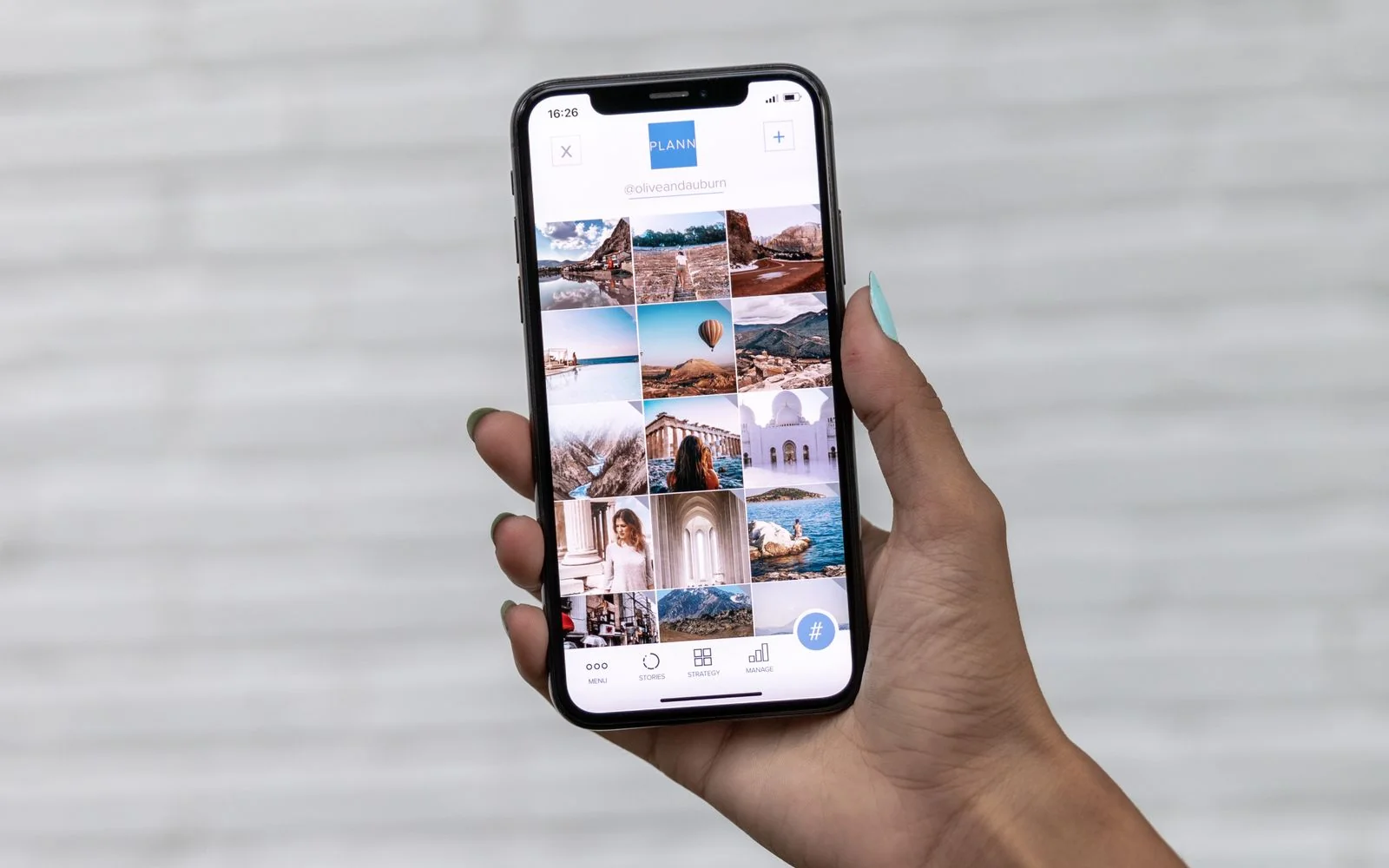
- Open the page or chat you want to capture.
- Press Power and Volume down together.
- Tap Capture more at the bottom of the screen.
- Drag the crop guides to cover the part you want, then save.
If Capture more doesn’t appear, the screen probably isn’t scrollable in a way Android can read.
Phone makers can rename this button in their own Android skins. Look for words like “Scroll,” “Extended,” or “Long screenshot” in the screenshot preview.
Scroll Capture on Samsung Galaxy
Samsung shows the option in a toolbar that pops up after each screenshot. If you never see it, switch the toolbar on first.
- Go to Settings > Advanced features > Screenshots and screen recorder.
- Turn on Show toolbar after capturing.
Then take the long screenshot:
- Open an article, website, or chat and press Power and Volume down.
- Tap the Scroll Capture icon in the toolbar; the screen scrolls and adds the next section each time you tap.
- Long-press the icon to jump straight to the bottom.
- Tap outside the toolbar to finish. The image saves to Gallery automatically.
For example, say you want to save a long WhatsApp conversation for a dispute. Tap the icon a few times instead of long-pressing, so you don’t capture months of unrelated messages.
What iPhone Offers
iPhone doesn’t have a universal scrolling screenshot for every app. Apple documents a separate full-page capture for content such as web pages and links to it from its screenshot help page.
After any screenshot on iOS 26, quick tools appear so you can mark up, crop, share, or choose where to save it. On iOS 18 and earlier, a thumbnail appears in the lower-left corner; tap it to edit.
To find your screenshots later, open Photos, go to Collections > Media Types > Screenshots.
When It Doesn’t Work
Some apps, often banking or streaming apps, may block screenshots on purpose. If one app refuses while others work, that’s the likely reason.
If the toolbar or Capture more option vanishes after an update, check the screenshot settings again.
Long screenshots often include names, phone numbers, or account details. Crop or blur them before sharing in a group chat.
Try it once on a long settings page today, so the buttons are muscle memory before you actually need a receipt.

Komentar Ditutup! Anda tidak dapat mengirimkan komentar pada artikel ini.