

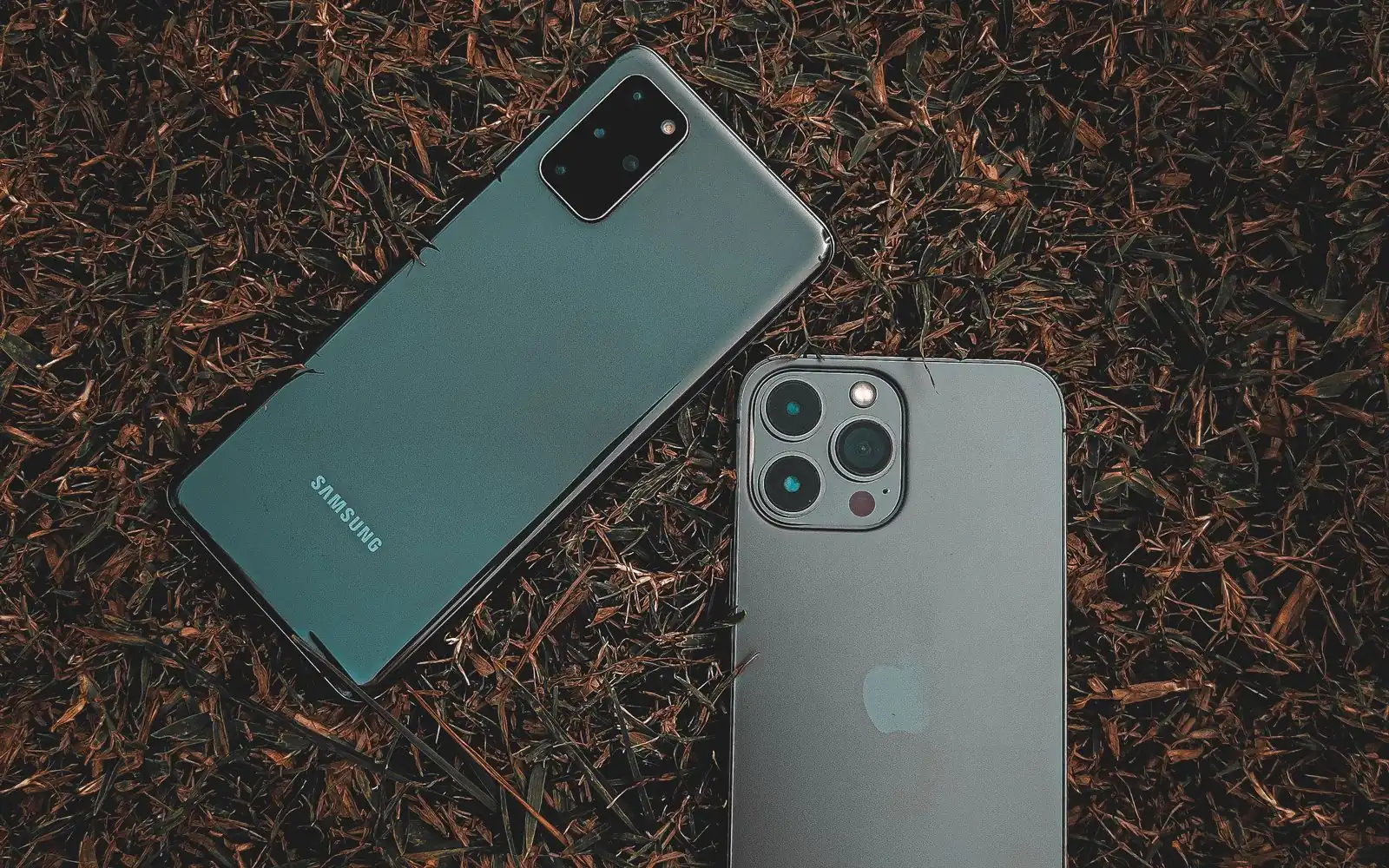
Sebaraya Tech – The most common mistake when moving WhatsApp from Android to iPhone is setting up the iPhone first and installing WhatsApp right away. Once WhatsApp is active on the iPhone, the official transfer no longer works without a factory reset.
So plan before you unbox. This guide follows WhatsApp’s own process using Apple’s Move to iOS app, including what carries over, what doesn’t, and how to fix a transfer that stalls.
What You Need Before Starting
WhatsApp lists these requirements:
- An Android phone running Android 5 or later, with the Move to iOS app installed
- An iPhone running iOS 15.5 or later that is brand new or reset to factory settings
- The latest WhatsApp on both phones
- The same phone number on the iPhone as on the Android phone
- Both phones plugged into power and on the same Wi-Fi network, or the Android phone connected to the iPhone’s hotspot
WhatsApp says other data migration apps aren’t supported and can cause problems. Stick to Move to iOS.
If you’re switching to a new number at the same time, change the number on your Android phone first, then transfer.
Step by Step Transfer
- On the Android phone, open Move to iOS and follow the prompts.
- Enter the code that appears on the iPhone.
- Tap Continue, then select WhatsApp on the Transfer Data screen.
- Tap START on the Android phone and wait while WhatsApp prepares your data. You’ll be signed out of WhatsApp on Android when it’s ready.
- Tap NEXT to go back to Move to iOS, then tap CONTINUE and wait for the transfer to finish.
- On the iPhone, install the latest WhatsApp from the App Store.
- Open WhatsApp, log in with the same number, tap Start, and let the import finish.
- Complete the iPhone setup. Your chats should be waiting.
Large chat histories with lots of videos take longer. Keep both phones close together and plugged in the whole time.
What Moves and What Stays Behind
| Transfers | Doesn’t transfer |
|---|---|
| Account info and profile photo | Call history |
| Individual and group chats, communities | Display name |
| Chat history, media, and settings | Media received through Channels |
| Channel updates | Peer-to-peer payment messages |
| WhatsApp Business chats |
All of this comes from WhatsApp‘s help center. If you rely on WhatsApp Business, plan another route, since that transfer isn’t possible yet.
Your Android phone keeps its copy of the data until you delete WhatsApp or reset the phone. Keep it untouched for a few days in case you need to retry.
Back Up on Your iPhone Afterward
Transferred chats aren’t stored in the cloud until you create an iCloud backup on the iPhone. Turn on WhatsApp’s iCloud backup soon after moving, so a lost or broken iPhone doesn’t take your history with it.
WhatsApp also notes that it can’t see the data you transfer.
If the Transfer Fails
Already set up WhatsApp on the iPhone? WhatsApp says the only way to bring the old history over is to factory reset the iPhone, reinstall WhatsApp on Android, and run Move to iOS again. Back up your iPhone before resetting it, and note that old and new chats can’t be merged.
Other common fixes from WhatsApp:
- “Something went wrong”: the chat history may be corrupted; choose Retry or Skip Import.
- “An unknown error occurred”: restart both phones and try again.
- QR code won’t scan: turn iPhone brightness to maximum, clean the Android camera, and remove the iPhone’s screen protector.
If Move to iOS itself crashes or cancels, contact Apple Support.
Before you hand over or sell the Android phone, open WhatsApp on the iPhone and scroll through a few old chats. Wipe the old phone only after you’ve confirmed everything arrived.
Komentar Ditutup! Anda tidak dapat mengirimkan komentar pada artikel ini.