

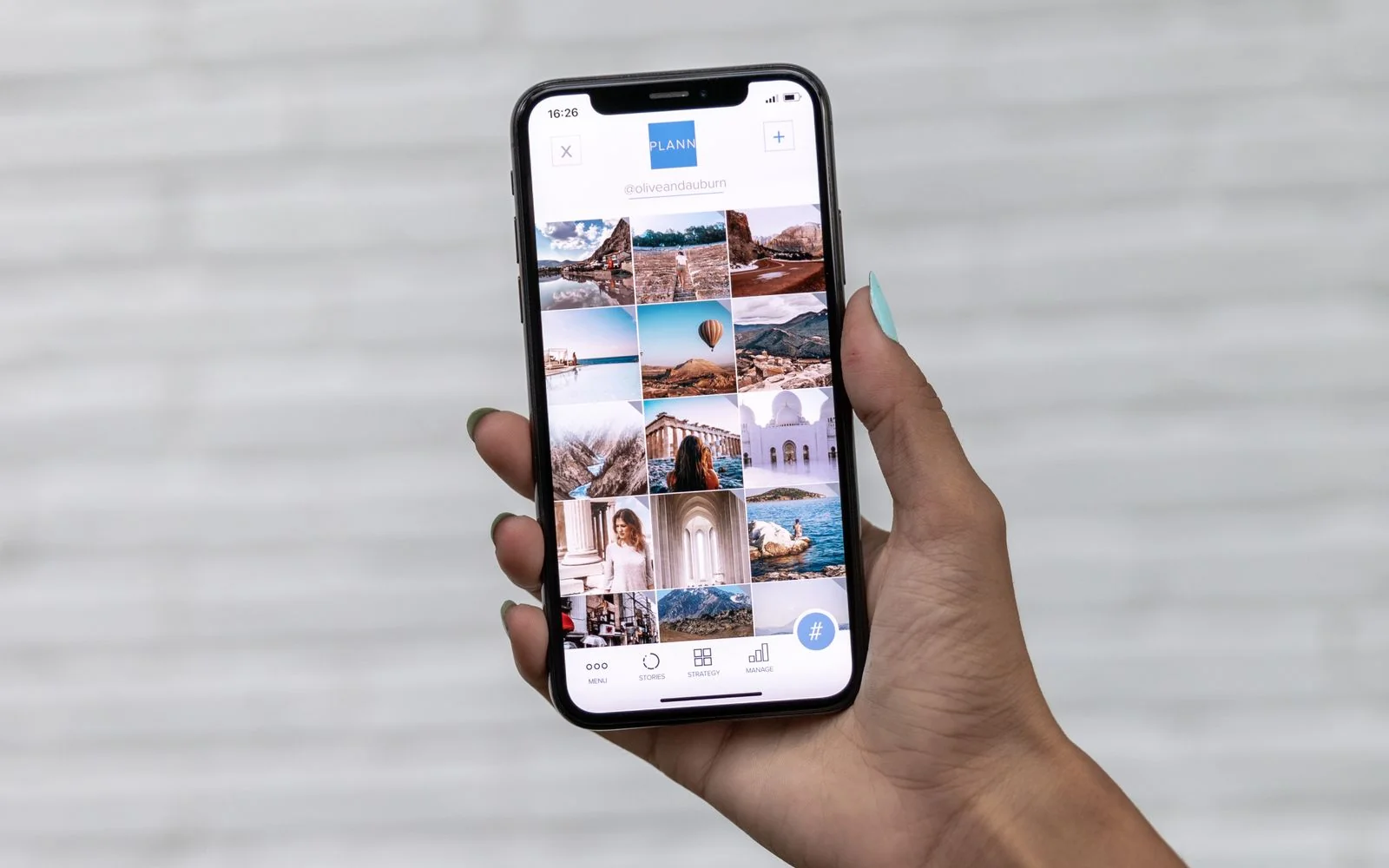
Sebaraya Tech – “Storage almost full” usually appears right when you want to take one more photo. The good news: you can clear gigabytes without deleting a single picture, by moving photo originals to the cloud and trimming apps instead.
The steps differ between iPhone and Android, and one wrong tap can delete photos for good. This guide covers the safe options on both, in the order worth trying.
See What’s Using Your Storage
Start by finding the biggest offenders. On iPhone, open Settings > General > iPhone Storage to see recommendations and a list of apps sorted by size. On Android, open Settings > Storage and tap each category.
If a few apps or downloaded videos sit at the top of that list, deal with them first. You may not need to touch your gallery at all.
Don’t chase “System” or “Other” storage too hard. On iPhone, that space holds things like caches, logs, and system data that the phone manages and clears on its own when space runs low.
Offload Apps Instead of Deleting Them
On iPhone, tap any app in iPhone Storage and choose Offload the app. This removes the app but keeps its documents and data, so everything returns when you reinstall it.

Choose Delete the app only if you don’t need its data. That option removes the app and everything it stored.
On Android, uninstalling unused apps frees space too, and paid apps can be reinstalled without paying again.
Keep Photos in the Cloud on iPhone
With iCloud Photos turned on, Optimize iPhone Storage keeps full-resolution photos and videos in iCloud and smaller copies on your phone. It’s on by default when you use iCloud Photos.
To check it, go to Settings > [your name] > iCloud > Photos. On iOS 27 or later, tap iPhone Storage on that screen first, then make sure Optimize iPhone Storage is selected.
The catch is cloud space. Every iCloud account includes 5 GB free; if your library is bigger than that, you’ll need more iCloud+ storage for this to work.
Use Google Photos on Android
If your photos are backed up to Google Photos, you can remove the copies on your phone and keep them in your library.
- Open Google Photos and tap your profile picture.
- Tap Free up space on this device.
- Review how much space you’ll gain, then tap Free up [amount] from device.
Photos and videos from the last 30 days may stay on the phone. Afterward, you’ll still see everything in Google Photos and at photos.google.com, but not in your phone’s built-in gallery or while offline.
Android’s Smart Storage can also clear backed-up photos automatically when storage runs low. Find it under Settings > Storage > Free up space, then the menu’s Settings.
Clear Caches and Downloads
Downloaded music, podcasts, and videos are easy wins. Remove them inside the app that downloaded them.
On Android, clearing an app’s cache removes temporary files. Clearing its storage is different: it permanently deletes all of that app’s data, so try the cache first.
On iPhone, Apple’s Recommended for You suggestions (iOS 17 and later) can point you to large files and backups worth removing, and merging duplicate photos frees space without losing a shot.
The Delete That Costs Photos
Before using any “free up space” option, confirm your photos finished backing up. Google warns that its Free up space feature deletes photos from your device.
In Google Photos, the normal Delete removes a photo from your phone and from your Google Photos backup. To remove only the phone copy, use More > Delete from device instead.
Deleted items stay in the Google Photos trash for 30 days, after which they’re gone. If you delete something by mistake, check the trash before that window closes.
Open your storage screen today and note the top three apps. Offloading even one of them can buy you a lot of room.
Komentar Ditutup! Anda tidak dapat mengirimkan komentar pada artikel ini.