

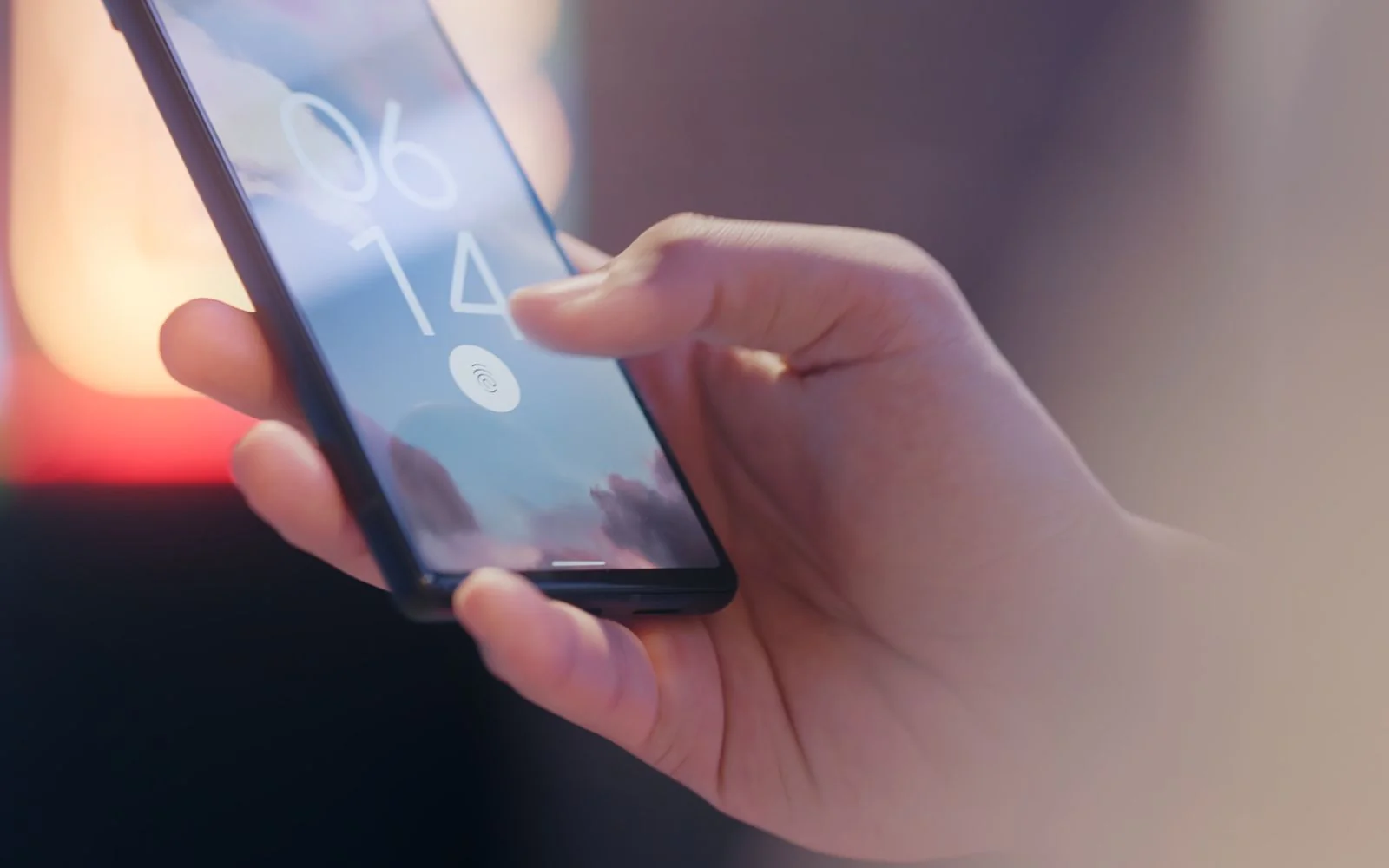
Sebaraya Tech – A passkey lets you sign in to your Google Account the same way you unlock your phone: with your fingerprint, face, or screen lock PIN. There’s no password to type, so there’s nothing for a fake login page to steal.
In a 2024 survey commissioned by the FIDO Alliance, 53% of people had turned on passkeys for at least one account, so plenty of people still haven’t. This guide explains how they work, what you need, how to set one up, and the one mistake that can undo the security benefit.
How a Passkey Works
A passkey is a digital credential stored on your device. It uses public-key cryptography: the website keeps a public key, and your device keeps the private key that proves it’s you.
When you sign in, Google sends a challenge, your device answers it after you unlock it, and no reusable secret travels across the internet or sits on Google’s servers.
Your fingerprint or face scan never leaves your phone. Google says biometric data stays on your device and is never shared with the company.
Why It Beats a Password
A password can be guessed, reused, or typed into a convincing fake page. A passkey can’t be shared, copied, written down, or handed over by accident, which makes it far more resistant to phishing.
Think of it as a key cut for one lock that only turns when you’re holding it. Even a perfect copy of Google’s login page gets nothing useful from you.
What You Need Before You Start
Google lists these requirements:
| Device or browser | Minimum version |
|---|---|
| Android | 9 or later |
| iPhone and iPad | iOS 16 or later |
| Windows | 10 or later |
| Mac | macOS Ventura or later |
| Chrome / Edge | 109 or later |
| Safari | 16 or later |
| Firefox | 122 or later |
Turn on your phone’s screen lock first. On iPhone, iPad, and Mac, iCloud Keychain also needs to be on. To use your phone to sign in on a computer, switch on Bluetooth.
Create a Passkey for Your Google Account
- Go to myaccount.google.com/signinoptions/passkeys and sign in.
- Select Create a passkey.
- Unlock your device with your fingerprint, face, or PIN when prompted.
Using a physical security key instead? Select Use another device and follow the prompts.
A new passkey can take up to 7 days to become available at sign-in, so keep your password and other sign-in methods in place for now.
Synced or Device-Bound
Synced passkeys are stored through a passkey provider, such as your phone’s credential manager, and follow you across devices; the FIDO Alliance says that syncing is end-to-end encrypted. Passkeys on hardware security keys never leave the key, which the FIDO Alliance describes as the highest level of assurance.
The Shared-Device Mistake
Only create passkeys on devices you personally own and use. Anyone who can unlock a device holding your passkey can get into your account, even after you sign out.
So skip the family tablet, an office PC others use, or a friend’s phone. Google specifically warns against creating passkeys on shared devices.
Remove a Passkey You No Longer Trust
Lost a phone or sold an old laptop? Remove its passkey. In your Google Account, open Security & sign-in, then Passkeys and security keys, select the passkey, and choose Remove.
Passkeys that Android created automatically are handled differently: go to Security & sign-in > Manage all devices, select the device, and choose Sign out.
If you still get passkey prompts after removing one, check any third-party password manager you use and delete it there too.
Set up one passkey on your main phone today, and test it the next time Google asks you to sign in.
Komentar Ditutup! Anda tidak dapat mengirimkan komentar pada artikel ini.