

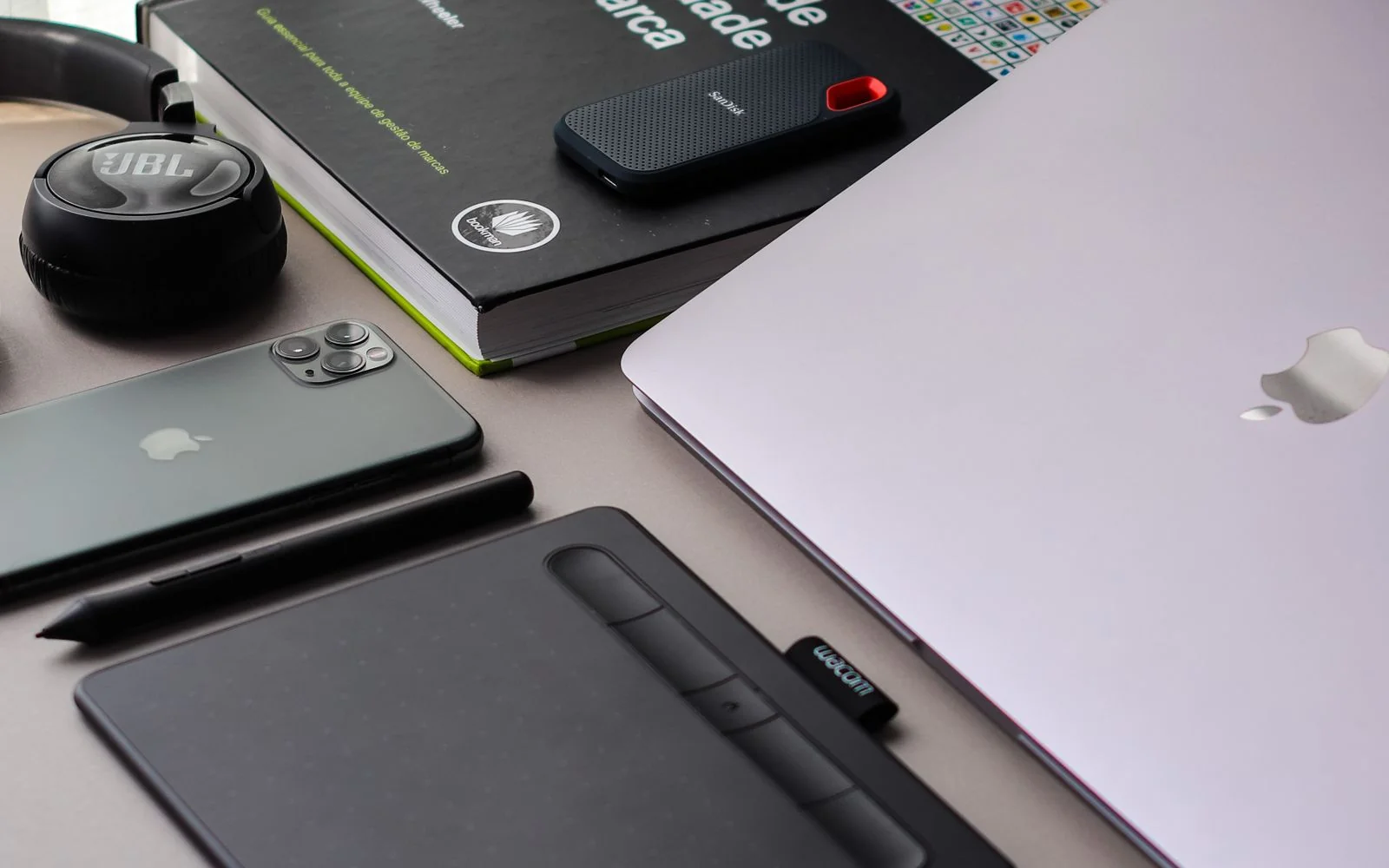
Sebaraya Tech – Your Google Account keeps a list of every phone, laptop, and browser signed in to it, and you can sign out any of them remotely. It takes about two minutes to check, and it’s the first place to look after losing a phone or selling an old laptop.
This guide shows where to find the list, how to read it without panicking, and what to do if something there isn’t yours.
Where to Find Your Signed-In Devices
- Open your Google Account and tap Security & sign-in.
- In the Your devices panel, select Manage all devices.
You’ll see devices where you’re signed in now, or were in the last few weeks. Devices you’ve left show as Signed out.
How to Read the List
Each entry shows a device type and the last time it talked to Google. That time can be more recent than your actual use, because phones sync in the background. A tablet in a drawer can still look “active today.”
You may also see several sessions under one device name. They might be one device or several of the same model.
Some unfamiliar entries have ordinary explanations, according to Google: a new device you just set up, a shared or public computer you once used, or a phone that was recently factory reset.

Granting an app access to your account data can also create its own session. Think back to any new app you’ve connected recently before assuming the worst.
Sign Out a Device Remotely
- In Manage all devices, tap the device.
- Tap Sign out.
If several sessions share the same device name, sign out of all of them, so no copy of that session keeps access.
This is the step to take for a lost phone, a sold laptop, or a library computer you forgot to log out of. Google advises signing out of any device that’s lost or no longer yours.
If a Device Isn’t Yours
If you don’t recognize a device and can’t explain it, change your Google password immediately. Google also suggests changing the password on any other site where you used the same one.
Then work through the rest of Google’s checklist:
- In Security & sign-in, open Review security events and mark anything unfamiliar as No, it wasn’t me.
- Remove devices you don’t recognize from Manage all devices.
- Review apps with access to your account and remove any you didn’t add.
- Check your recovery phone number and recovery email, and fix anything that changed without you.
- Turn on 2-Step Verification so a stolen password alone can’t get someone in.
Google’s Check your passwords tool can also flag passwords that have shown up in known leaks.
How Google Warns You
You don’t have to check the list daily. Google sends alerts for unusual sign-ins, new devices, and security changes you didn’t make, and may show a red bar saying it detected suspicious activity.
If Google finds a suspicious recovery method added to your account, it disables it and gives you 30 days to confirm you added it. Otherwise, it’s deleted.
Treat those alerts as worth a two-minute look, not something to swipe away.
Make It a Habit
Check the device list after any of these moments: replacing a phone, selling or giving away a laptop, signing in on a hotel or office computer, or getting a security alert.
Put a reminder in your calendar for the first day of each quarter. A quick look four times a year catches old sessions before anyone else does.
Komentar Ditutup! Anda tidak dapat mengirimkan komentar pada artikel ini.